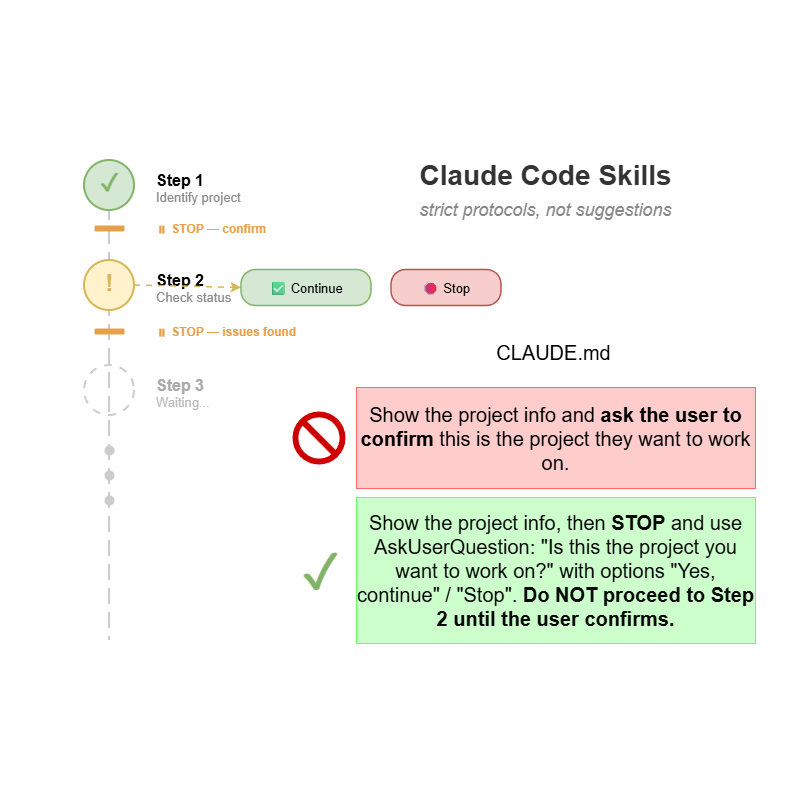
Practical patterns for writing Claude Code skills that involve sequential steps, user confirmations, and shell commands.
The key insight
Claude is trained to be helpful and proactive. In normal conversation, that’s a strength – it anticipates what you need and runs ahead. In a multi-step skill, that same instinct works against you. Claude will parallelize steps you wanted sequential, keep going past checkpoints where you wanted it to stop, and infer meaning from vague instructions in ways you didn’t intend.
The fix is to write skills as strict protocols, not guidelines. Every boundary must be explicit. Every choice must be spelled out. Every path must be unambiguous. If you leave room for interpretation, Claude will interpret – and not always the way you expected.
The seven lessons below are all variations of this one idea.
The seven lessons
- „Stop and ask“ doesn’t mean stop – Claude keeps going unless you explicitly forbid it
- Conditional stops need the same treatment – warnings don’t imply stopping
- Give Claude clickable choices – use AskUserQuestion instead of plain text prompts
- Watch for path issues in shell commands – Claude may self-heal, but you can prevent the error entirely
- Conditional logic needs explicit branches – spell out what each user choice leads to
- Give Claude the tools to give useful answers – one more piece of context can make output actionable
- Think of a skill as a strict protocol – not a suggestion
The skill
I built a skill that runs a multi-step environment check at the start of every work session. It identifies the project, verifies version control status, confirms the local server is running, checks dependencies, looks for updates, tests access, and reports on test infrastructure. Seven steps, each building on the previous one.
Simple enough on paper. In practice, I had to iterate several times before Claude followed the skill the way I intended.
Lesson 1: „Stop and ask“ doesn’t mean stop
My first version said:
Show the info and ask the user to confirm before continuing.
Claude interpreted this as: ask the question, then keep going while the user thinks about it. It said „I’ll proceed with the remaining checks while you confirm“ and ran all seven steps in one shot.
The fix: Be explicit and redundant about stopping.
Show the info, then STOP and use AskUserQuestion. Do NOT proceed to Step 2 until the user confirms.
The key phrase is „Do NOT proceed to Step N until…“ – it creates a hard boundary that Claude respects. Just saying „stop“ or „wait“ isn’t enough. You need to name the specific step that must not happen yet.
Lesson 2: Conditional stops need the same treatment
My skill checks for version control issues (uncommitted changes, diverged branches). The original version said:
If dirty, warn about uncommitted changes.
Claude would warn and keep going. A warning is informational to Claude – it doesn’t imply „stop.“
The fix: Every conditional stop needs the full STOP + AskUserQuestion + „Do NOT proceed“ pattern.
If ANY issue was found in this step, STOP and use AskUserQuestion: „Issues found. How to proceed?“ with options „Continue anyway“ / „Stop here, I’ll fix it“. Do NOT proceed to the next step until the user responds.
Lesson 3: Give Claude clickable choices
When Claude asks a question as plain text, the user has to type a response. This is slow and can be ambiguous. Claude Code has an AskUserQuestion tool that presents clickable options.
Before:
Ask the user to confirm.
Claude would write: „Does this look right? Let me know.“ And I’d have to type „yes.“
After:
Use AskUserQuestion: „Does this look correct?“ with options „Yes, continue“ / „Stop“
Now I get clickable buttons. Faster, no typos, and the choices are designed to be unambiguous.
Tip: Include AskUserQuestion in the skill’s allowed-tools frontmatter, then explicitly tell the skill to use it at every interaction point. Otherwise Claude will default to plain text questions.
Lesson 4: Watch for path issues in shell commands
My skill has steps that run in different directories: version control commands in one folder, server commands in another. The first version said:
From the project directory, run git status.
Claude used a relative cd and it failed. Claude immediately retried with an absolute path and it worked – so the skill completed successfully. But I saw the error-then-retry in the output and realized I could prevent it.
The root cause wasn’t clear – possibly the Bash tool resetting the working directory between calls, or a platform-specific path resolution issue. Rather than debugging it, I added a global rule at the top of the skill:
IMPORTANT: All commands must use absolute paths. Do NOT use relative paths or
cdwith relative paths.
The errors disappeared. Claude stopped wasting a round-trip on a failed relative cd followed by a corrected absolute one.
The general point: Watch Claude’s output for error-recovery patterns. If Claude consistently fails at something and then self-corrects, you can often prevent the initial failure with a one-line rule in the skill.
Lesson 5: Conditional logic needs explicit branches
My skill checks for updates and then optionally runs follow-up tasks:
- Check for updates.
- If updates exist, ask the user.
- Run follow-up tasks.
When the user chose „Skip updates,“ Claude still ran the follow-up tasks because step 3 wasn’t gated on the user’s choice.
The fix: Write both branches explicitly.
- If user chose „Update now“:
- Wait for user, then re-run checks.
- Run follow-up tasks.
- If user chose „Skip“ – skip step 7 entirely, proceed to the next major step.
Don’t assume Claude will infer that „skip“ means „skip everything related.“ Spell out what each choice leads to.
Lesson 6: Give Claude the tools to give useful answers
My skill checks which dependencies need updates. Originally it just listed them and said „update via your standard process.“ Not helpful – I already knew they needed updating. What I needed was actionable information about where to update them.
In my setup, most dependencies are symlinks pointing to shared source folders. Knowing the symlink target tells me exactly which source to update.
The fix: Tell the skill to resolve symlink targets and report them.
For each outdated dependency, check if it’s a symlink. If so, report the target path.
Now instead of „X needs updating,“ I get „X: symlink -> /path/to/shared/source“ and I know exactly where to go.
The general principle: If the skill can gather one more piece of context that makes the output actionable rather than just informational, add that step.
Lesson 7: Think of a skill as a strict protocol, not a suggestion
Claude is trained to be helpful and proactive. In normal conversation, that’s great. In a skill, it means Claude will try to optimize, parallelize, and skip ahead. It will run steps concurrently, answer its own questions, and keep going past checkpoints.
The countermeasure is to write skills like protocols, not guidelines:
- Name the boundaries: „Do NOT proceed to Step N until…“
- Name the tool: „Use AskUserQuestion“ not „ask the user“
- Name both branches: „If X, do A. If Y, do B.“ Don’t leave the else implicit.
- Name the paths: Use absolute paths, or reference a path established in an earlier step.
- Put global rules at the top, before any steps – Claude reads the skill top-to-bottom and global rules set the frame for everything that follows.
The pattern for every stop point
---
name: my-skill
allowed-tools: Bash, Read, AskUserQuestion
---

# My Skill

Global rules here (absolute paths, sequential execution).

## Step 1: Do something
1. Gather info.
2. **STOP** and use AskUserQuestion with clickable options.
   **Do NOT proceed to Step 2 until the user responds.**

## Step 2: Do something else
1. Run commands using absolute paths.
2. If problems found, **STOP** and use AskUserQuestion.
   **Do NOT proceed to the next step until the user responds.**
Every stop point follows the same three-part pattern: STOP, AskUserQuestion with options, Do NOT proceed until response.
Further reading
- Extend Claude with skills – official documentation on creating skills, SKILL.md format, allowed-tools, and how Claude discovers and loads skills
- How Claude remembers your project – CLAUDE.md project files and the auto-memory system (MEMORY.md) that persists knowledge across sessions
- Claude Code overview – getting started with Claude Code